Logitech Mouse Not Working? 10 Ways to Fix It
Is your Logitech mouse not working, not connecting, or not responding? This guide explains 10 practical ways to troubleshoot a Logitech mouse, including checking the battery, wireless receiver, Bluetooth connection, USB port, and Logitech software.
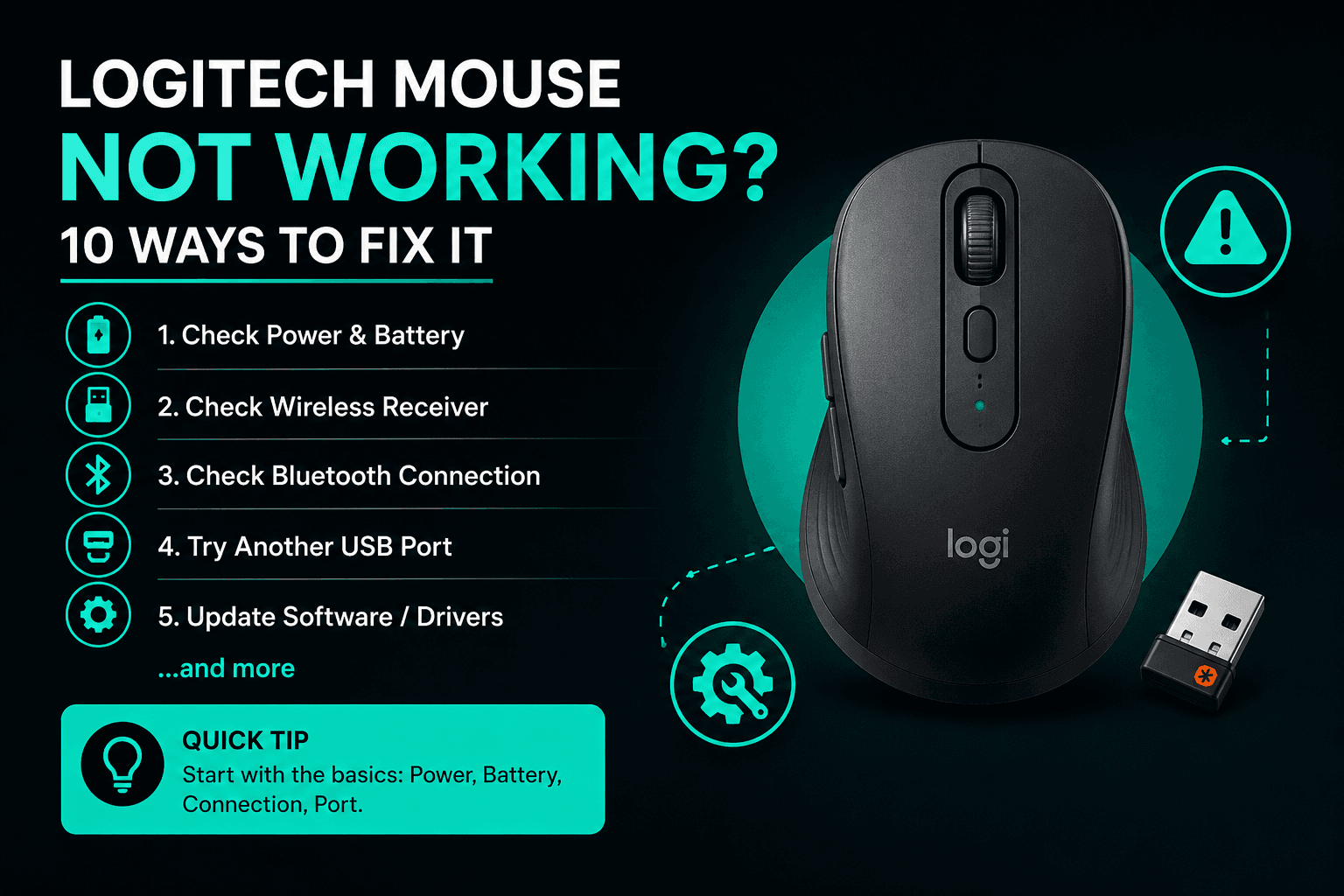
Restart Your Compute
Restarting your computer can resolve temporary connection or driver problems affecting a Logitech mouse. After restarting, turn on the mouse and check whether the cursor responds.
Try Another USB Port
A problem with the computer's USB port can prevent a Logitech wireless receiver from working correctly. Connect the Logitech receiver to another USB port and check whether the mouse starts responding.
Check the Bluetooth Connection
If your Logitech mouse connects through Bluetooth, make sure Bluetooth is enabled on your computer. Check that the mouse is in pairing mode and select the Logitech mouse from your computer's available Bluetooth devices.
Clean the Logitech Mouse Sensor
If the Logitech mouse turns on but the cursor does not move correctly, check the optical sensor underneath the mouse. Dust or debris around the sensor can interfere with tracking. Gently clean the sensor area and use the mouse on a suitable surface.
Check the Logitech Wireless Receiver
If your Logitech mouse uses a USB wireless receiver, make sure the receiver is securely connected to your computer. Try removing it and connecting it to another available USB port.
Check Logitech Mouse Software and Settings
Supported Logitech mice can be configured using Logitech software such as Logi Options+. Check whether your mouse is recognized and review its available settings. Logitech software can provide additional customization and device management features for supported models.
Check That Your Logitech Mouse Is Turned On
Start by checking the power switch on your Logitech mouse. Make sure it is switched on and, if your model has a power indicator, check whether the indicator responds when you turn the mouse on.
Check the Logitech Mouse on Another Computer
Connect your Logitech mouse to another compatible computer to determine whether the problem is with the mouse or the original computer. If the mouse works normally on another computer, the issue may be related to the first computer's settings, Bluetooth connection, USB port, or software.
Replace or Recharge the Logitech Mouse Battery
A Logitech wireless mouse may stop responding when its battery is low or completely depleted. Replace the batteries on models that use replaceable batteries or recharge the mouse if it has a built-in rechargeable battery.
Check Whether the Logitech Mouse Is Properly Paired
Some Logitech wireless mice need to be paired with their receiver or connected through Bluetooth before they can work. Confirm that the mouse is connected to the correct computer and, where supported, use the appropriate Logitech pairing or connection process