How to Change DPI on a Logitech Mouse
Changing the DPI on a Logitech mouse can make the pointer move faster or slower and can improve control during gaming, office work, graphic design, and everyday computer use. Some Logitech mice allow you to change DPI directly using a dedicated button, while compatible Logitech gaming mice provide more detailed DPI controls through Logitech G HUB. This guide explains what DPI means, how to change it, how to choose the right DPI, and what to do if your Logitech mouse does not provide a direct DPI adjustment.
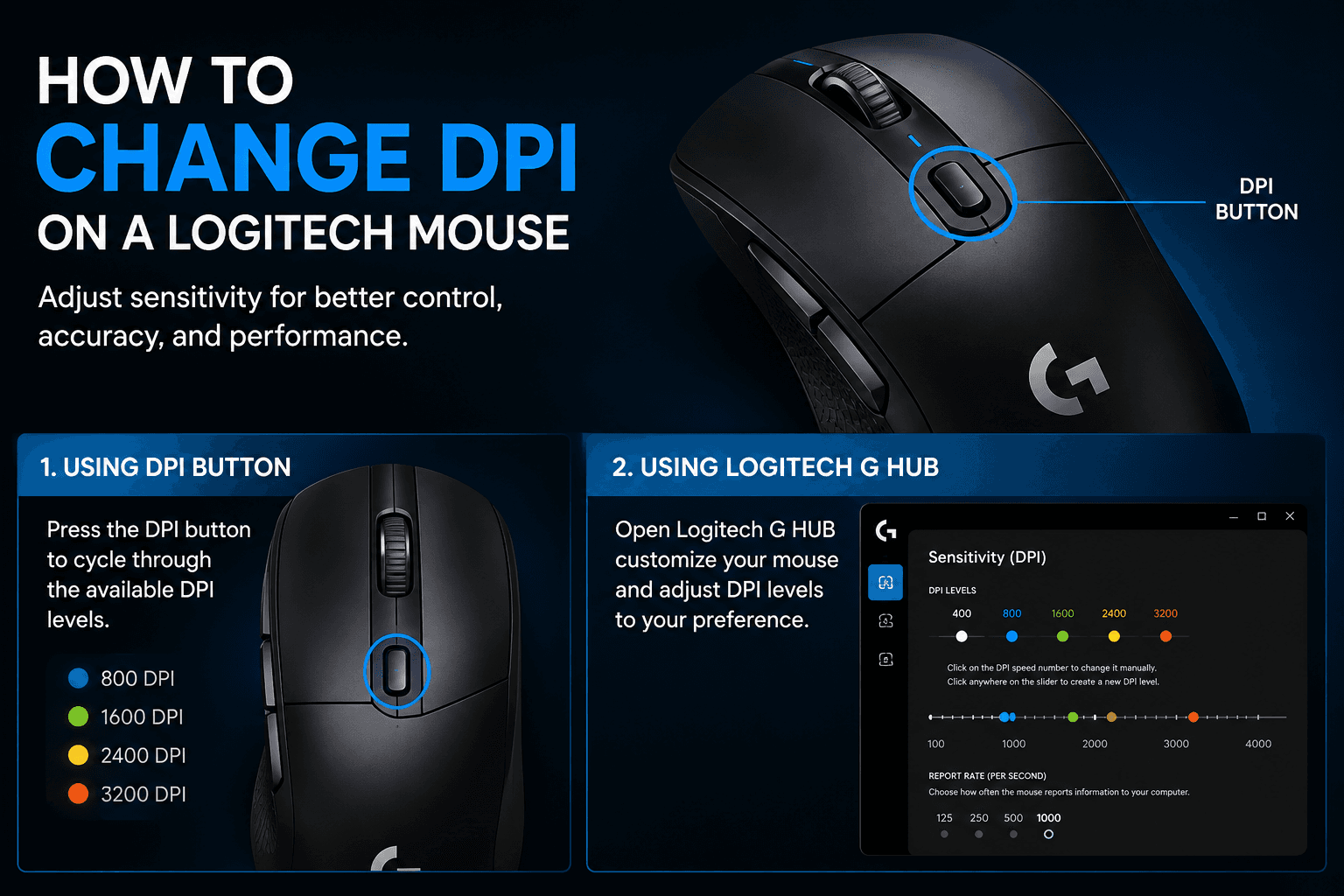
Change DPI Using Logitech G HUB
Connect your Logitech gaming mouse to the computer and open Logitech G HUB. Select your mouse from the devices displayed in the application and look for the sensitivity or DPI settings. Depending on the mouse model, you may be able to configure multiple DPI levels and select a preferred sensitivity. Some supported models also provide additional sensitivity controls. The available DPI range and customization options depend on the specific Logitech mouse, so not every Logitech gaming mouse will provide exactly the same settings.
What Is DPI on a Logitech Mouse
DPI stands for dots per inch and describes how sensitive a mouse sensor is to physical movement. A higher DPI generally makes the mouse pointer move farther across the screen with less physical movement, while a lower DPI provides slower and more controlled movement. For example, if you move your Logitech mouse the same physical distance at 800 DPI and then at 1600 DPI, the pointer will generally travel farther at 1600 DPI. This can make a higher DPI useful when you want to move quickly across a large screen, while a lower DPI can provide more control when precision is important.
Change DPI Using the Logitech Mouse Button
If your Logitech mouse has a DPI button, press the button to switch between the available sensitivity levels configured for the device. Move the mouse after changing the setting to determine whether the pointer is moving at a comfortable speed. If you cannot find a DPI button, your particular Logitech mouse may not support direct DPI switching through a physical button. In that case, check whether your model supports Logitech software for additional customization.
Change DPI on a Logitech Mouse Without a DPI Button
If your mouse does not have a DPI button, check whether it is compatible with Logitech software. Depending on the model, Logitech Options or Logi Options Plus may provide customization features that affect pointer behavior. You can also adjust the mouse pointer speed through your computer's operating system. This changes how quickly the pointer moves across the screen, although changing pointer speed is not necessarily the same as changing the physical DPI of the mouse sensor.