How to Connect a Logitech Wireless Keyboard to a Laptop
Learn how to connect a Logitech wireless keyboard to a laptop using Bluetooth or a Logitech USB wireless receiver. This guide explains the setup process, pairing steps, Easy-Switch, and what to check if your Logitech keyboard does not connect.
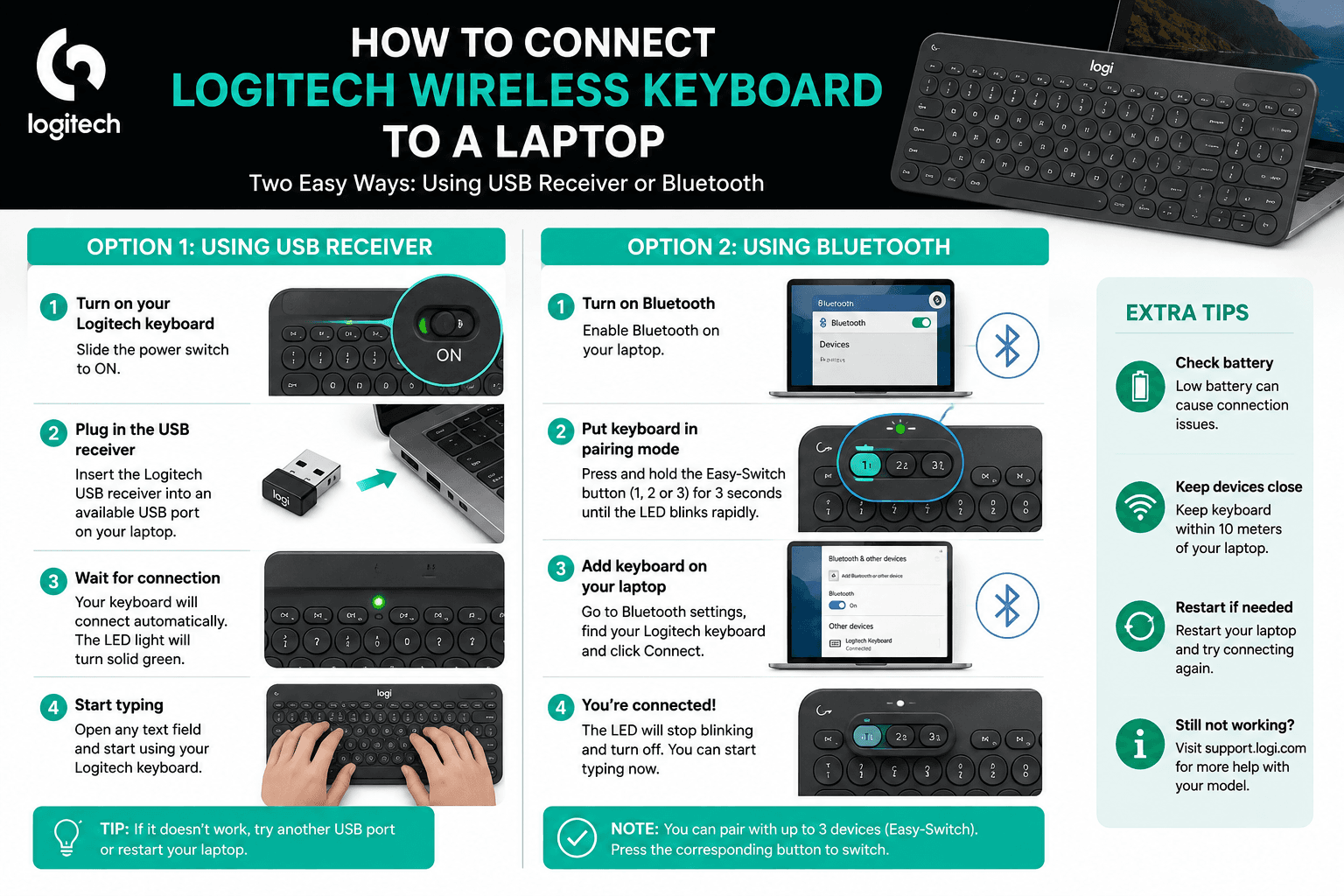
Connect a Logitech Wireless Keyboard Using Bluetooth
Open the Bluetooth settings on your laptop and make sure Bluetooth is enabled. Keep the Bluetooth settings window open while you put the Logitech keyboard into pairing mode. On Logitech keyboards with Easy-Switch buttons, select the channel you want to use and press and hold the button for about three seconds. The corresponding LED normally begins blinking rapidly, indicating that the keyboard is ready to pair. In your laptop's Bluetooth settings, look for your Logitech keyboard in the list of available devices. Select the keyboard and follow any instructions displayed by your laptop to complete the pairing process. After pairing, open a text editor, browser search box, or another text field and type using your Logitech keyboard. If the keys respond normally, the Logitech keyboard is successfully connected.
Connect a Logitech Keyboard Using a USB Wireless Receiver
If your Logitech keyboard includes a compatible USB wireless receiver, plug the receiver into an available USB port on your laptop. Turn on the keyboard and wait for the wireless connection to be established. Some Logitech keyboards are supplied with a receiver that is already paired with the keyboard.